
Platform documentation
Three role-based guides: tournament organizers, KheloOnline staff and platform administrators. Each walks the exact screens in the order you'll use them.
Last updated: 24 August 2026
1. Tournament organizer guide
Access level: your own organization only. Sign in at /auth; every new organization starts on a 3-day Pro trial.
- Create your organization on first sign-in — name, sport focus and logo. This becomes your tenant; all teams, players and tournaments live inside it.
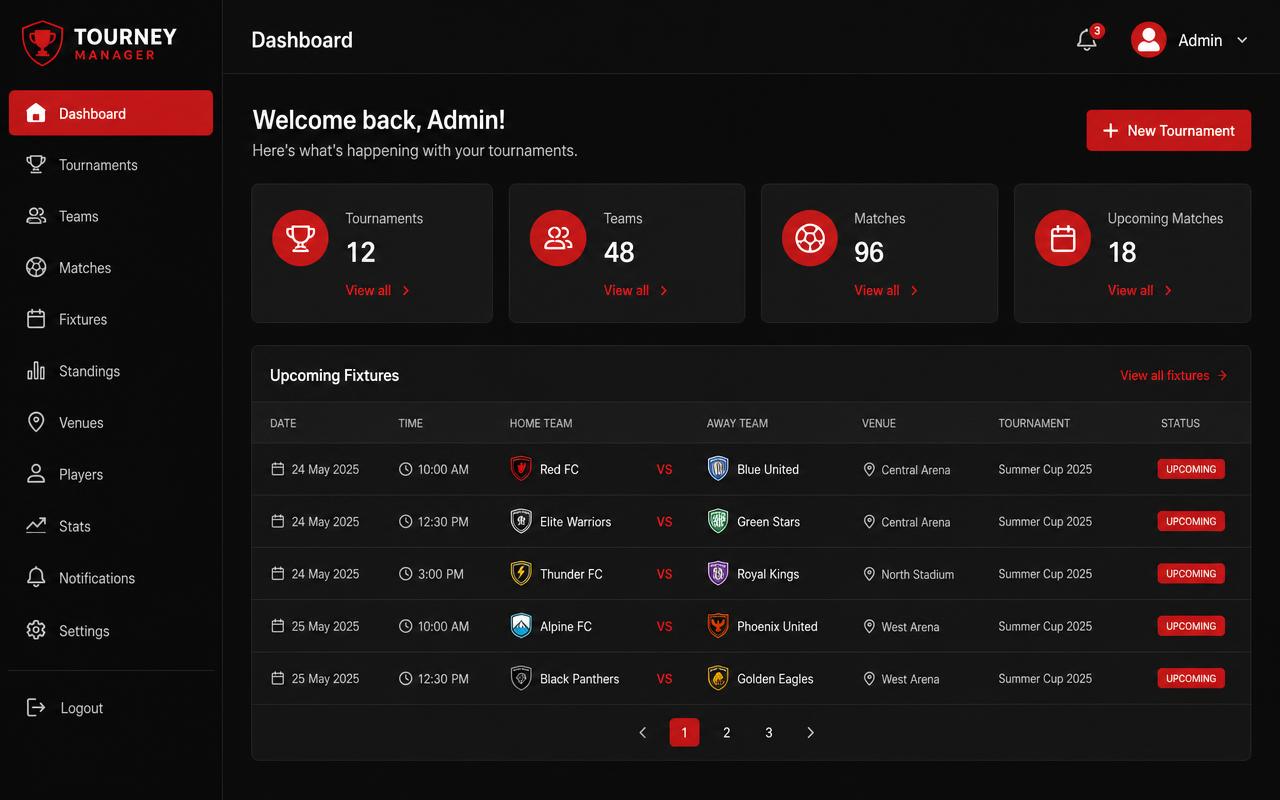
- Go to Dashboard → New tournament. Pick a sport, format (league, knockout or hybrid), dates and venue. Templates pre-fill sensible defaults.
- Open the tournament → Teams tab. Add teams manually, or open registrations so captains submit themselves for your approval.
- Players tab: add squads one by one, or bulk import from CSV (columns: full_name, jersey_number, position).
- Fixtures tab: click Generate fixtures. Edit venue and kick-off times inline; drag matches to reschedule.
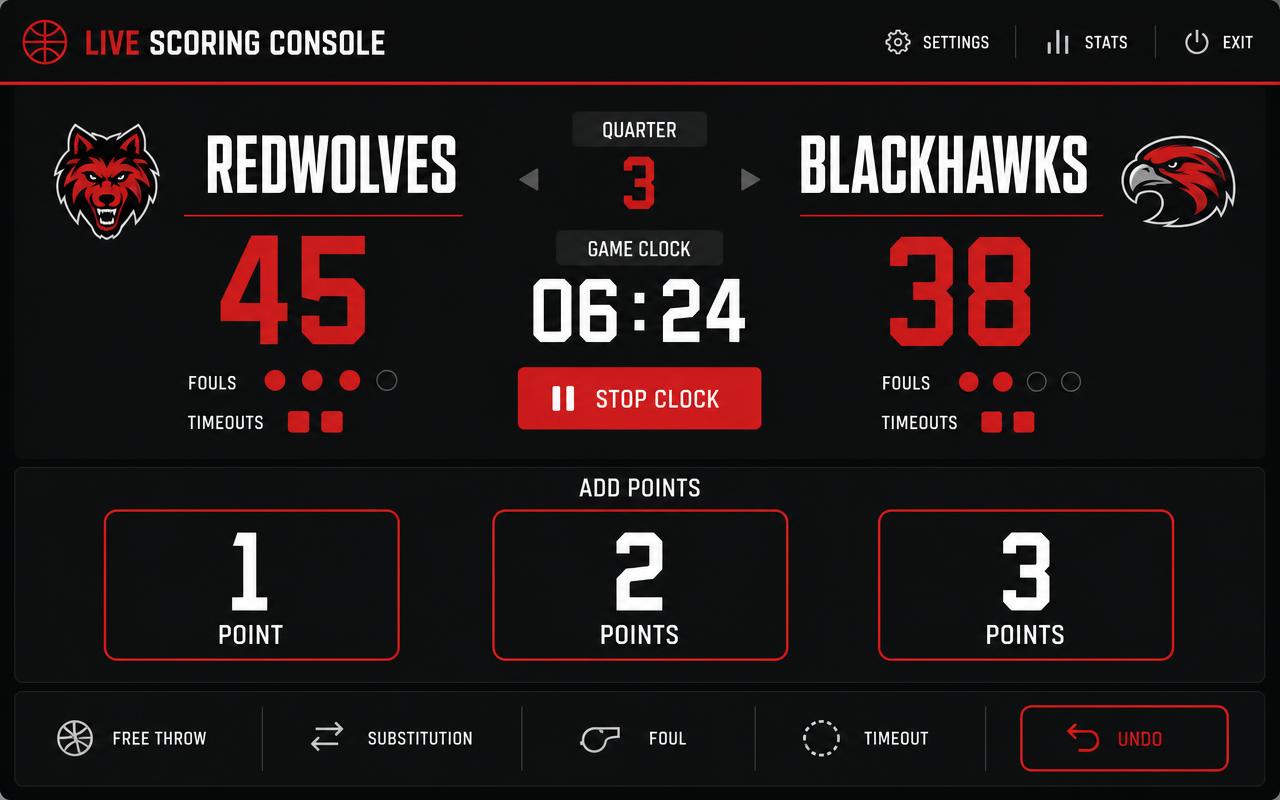
- On match day open the live console: update the score, and standings plus public pages refresh in real time for fans.
- Media tab: upload gallery photos, add sponsors with tiers, and issue certificates in bulk — each carries a QR code that verifies at /c/<code>.
- Websites: generate a public tournament microsite with live team, match, venue and prize-pool counts, then share the link.
- Posters: generate branded match and result posters. Trial accounts get 2 free; more are available as an add-on.
- Billing: upgrade before the trial ends to keep tournaments published. Invoices with GST are downloadable from the Billing page.
Screens to bookmark: /dashboard, /tournaments, /websites, /posters, /billing.
2. KheloOnline staff guide (support & finance)
Access level: cross-tenant read plus support actions. Roles: support_exec and finance_manager, assigned by a platform administrator.
- Support inbox: /support lists every ticket across tenants with status and priority. Reply in-thread; internal notes stay hidden from the customer.
- Contact messages and demo requests arrive in Admin → Settings; move each through new → in progress → closed so nothing is dropped.
- Finance: /admin/revenue shows MRR, plan mix and invoice history. Use /admin/usage to confirm AI add-on consumption before issuing credits.
- Never edit subscription status by hand — billing state is written only by the verified Razorpay webhook. Raise a platform-admin request instead.
- For account recovery, verify identity against the registered phone number before any change.
3. Platform administrator guide (SaaS owner)
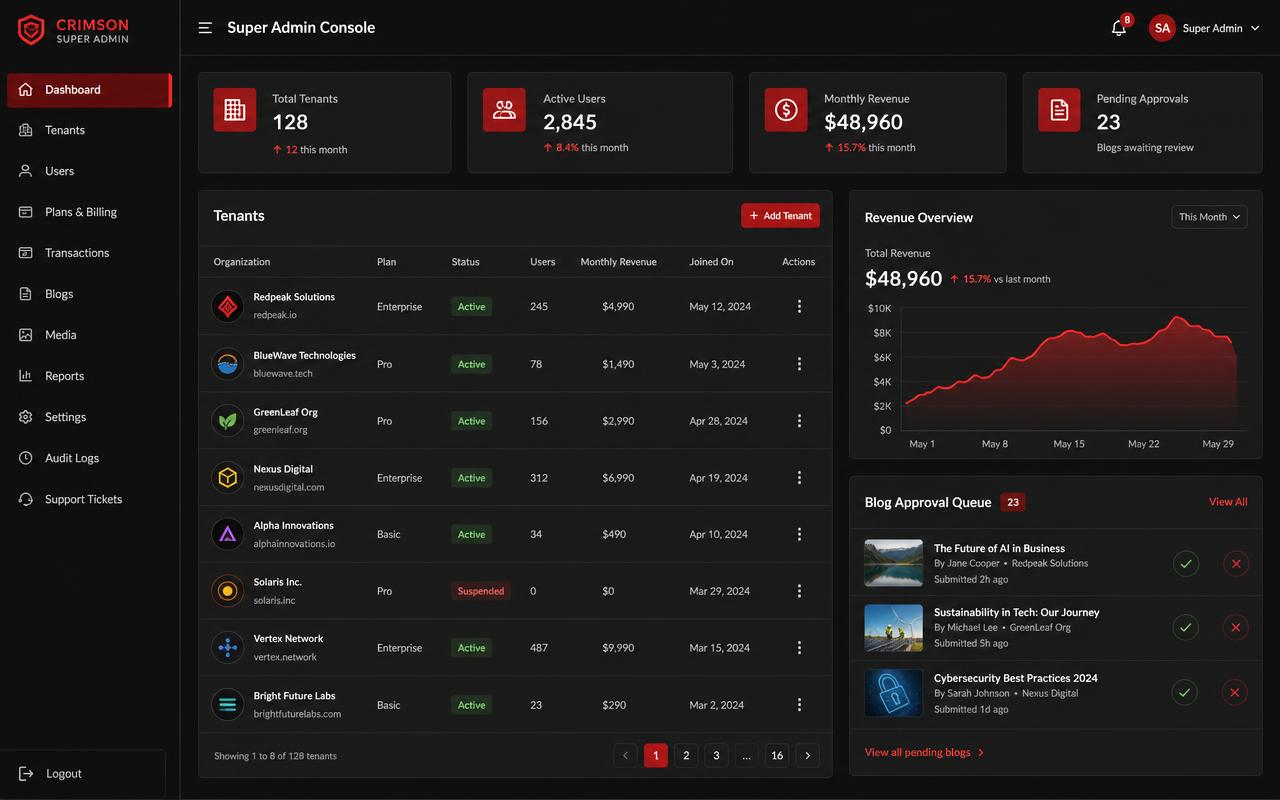
Access level: full platform. Roles: super_admin and platform_admin. Landing screen is /admin.
- Organizations: /admin/organizations — create tenants on behalf of a customer, inspect usage and suspend abusive tenants.
- Users: /admin/users — invite staff, assign platform roles, and reset access.
- Plans & add-ons: /admin/plans and /admin/addons — edit pricing, quotas and feature limits; changes apply to new checkouts immediately.
- Payments: Admin → Settings → Payment gateway. Store the Razorpay Key ID, Key Secret and Webhook Secret (encrypted at rest), pick test or live mode, and set the GST percentage.
- AI providers: Admin → Settings — set the preferred provider and store fallback Gemini / OpenAI keys. Use Rotate to clear a compromised key instantly.
- Content: /admin/blogs — review and approve tenant blog posts before they go public.
- Quotas: /admin/quotas — per-feature monthly limits and rate limits per organization.
- Security: sign-in throttling, honeypot bot traps and audit logs are always on; review audit trails before any destructive action.
End-to-end test environment
A seeded demo tenant is available for rehearsing the full organizer flow without touching live data. Use it only in Test payment mode.
- Organizer login:
demo.organizer@kheloonline.in/DemoOrg@2026 - Tenant:
Yunite Demo Sports Club(slugyunite-demo-sports-club) - Tournament: KheloOnline Demo Cup 2026 — cricket, 4 teams, 12 players, a full round-robin fixture list with some results already entered.
Suggested test pass: sign in → open the demo tournament → add a team → regenerate fixtures → score a live match → check the public microsite and standings update → generate a poster → issue a certificate and verify its QR code at /c/<code> → run a test-mode checkout.
Access & credentials
Credentials are never published on this page. Platform administrators receive their sign-in details privately, and every account is expected to use a unique password plus a verified phone number. Staff accounts are created by a platform administrator from /admin/users — self-signup never grants platform access.
For end-to-end testing, use a dedicated test organization on a test-mode payment configuration so no real money moves. Switch Admin → Settings → Payment gateway to Test mode before running a checkout rehearsal.
Getting help
Raise a ticket from /support inside the app, or email support@kheloonline.in. Include your organization name and the tournament link so we can reproduce quickly.